Remove photo backgrounds and straighten artwork in one tap
The photo editor now puts any item on a clean white square, squares up paintings and prints from their corners, and can clean the first photo of every new item automatically. Included on Pro and above.
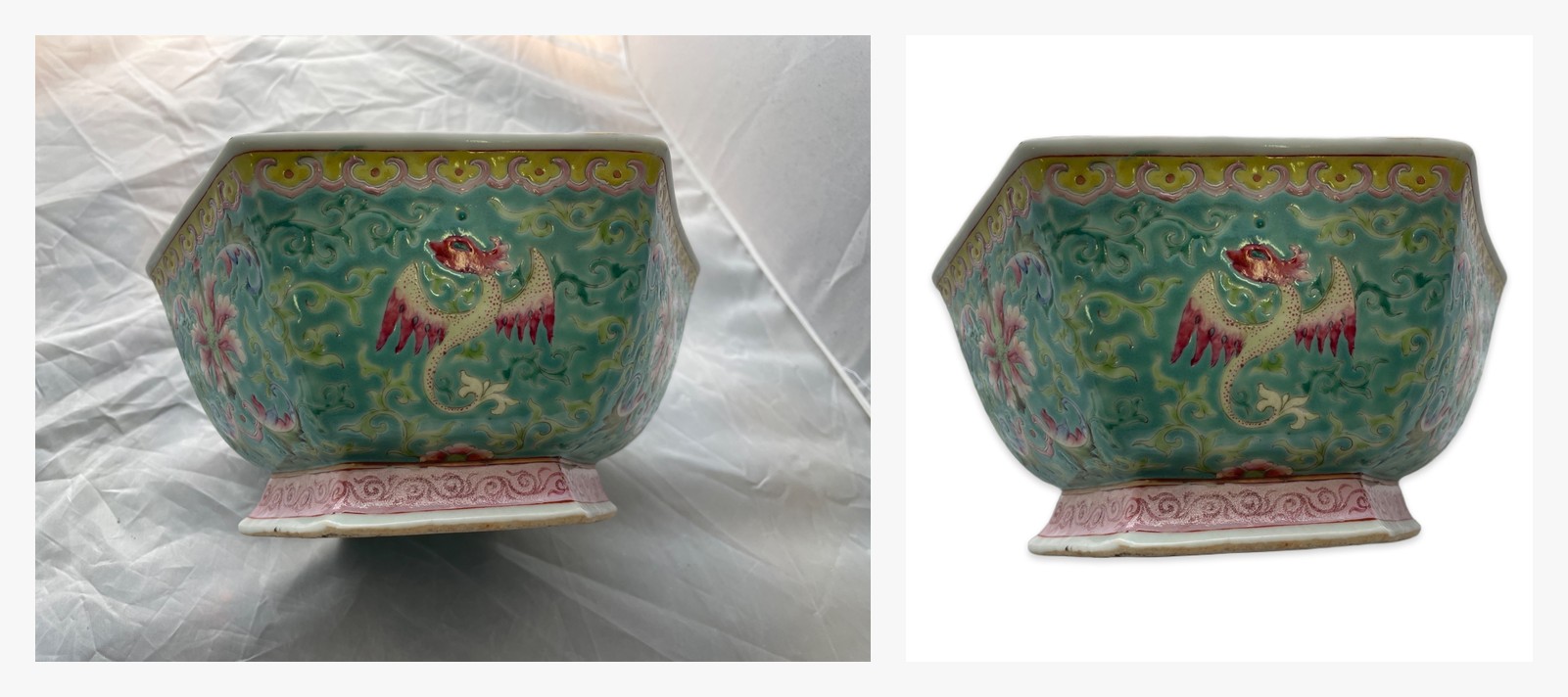
Clean product photos sell better, and most of us shoot on a workbench, a kitchen table, or a tarp in the warehouse. Estimint's photo editor now removes the background for you: one tap puts the item on a clean white square, centered, with an even margin and a soft shadow. Paintings and prints get their own tool that cuts the artwork to its corners and squares it up. Both are included on Pro, Auction Pro and Business, with no per-photo charge.
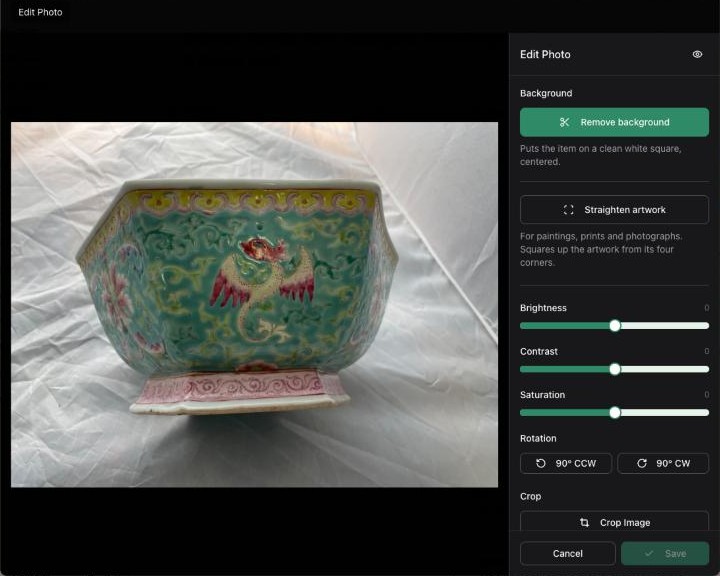
Remove a background in one tap
Open any item, click a photo, and press Edit. The editor now starts with a Background section. Press Remove background and a few seconds later the item sits on a white square, ready for a catalog, a marketplace listing, or a label.
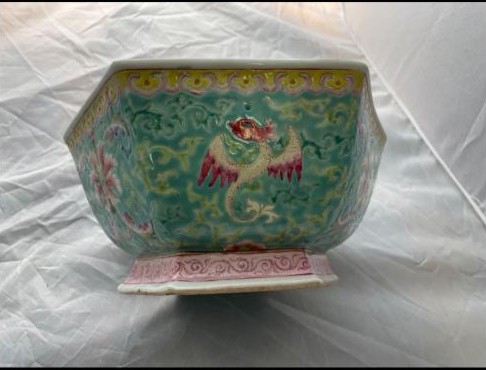
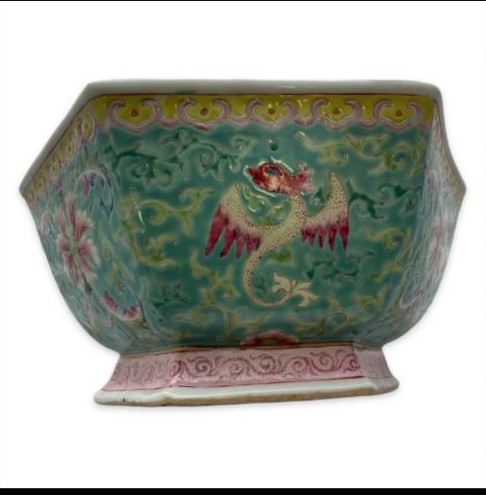
Once the background is gone you can tidy the result without leaving the editor:
- Remove pieces. Tap a lot sticker, a scrap of tape, or a stray object the cut-out kept, and it disappears. No AI involved, so it is instant.
- Try again (detailed). If the first pass missed fine detail such as fringe, chain links, or glass, run the second, more detailed engine.
- Rotate and frame. Rotate in 90 degree steps or with the fine slider, keep the square or the photo's own shape, and turn the margin and shadow on or off.
- Undo changes. The original photo is always kept. One tap puts it back, today or next month.
Straighten artwork
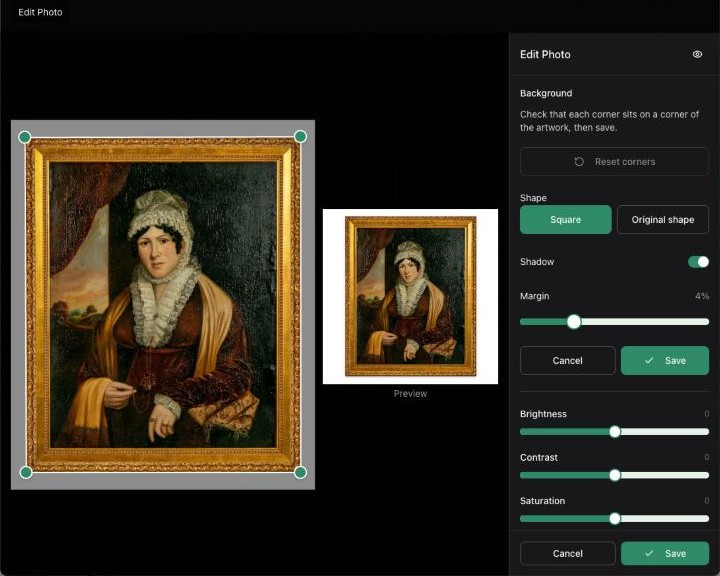
Flat art is a different problem. A painting photographed at a slight angle looks like a trapezoid, and the frame edge, the wall, and the nail all end up in the shot. Press Straighten artwork and Estimint finds the four corners of the piece, squares it up, and frames it the same way. If the automatic fit is unsure, drag the four corner handles yourself.
Let it happen automatically
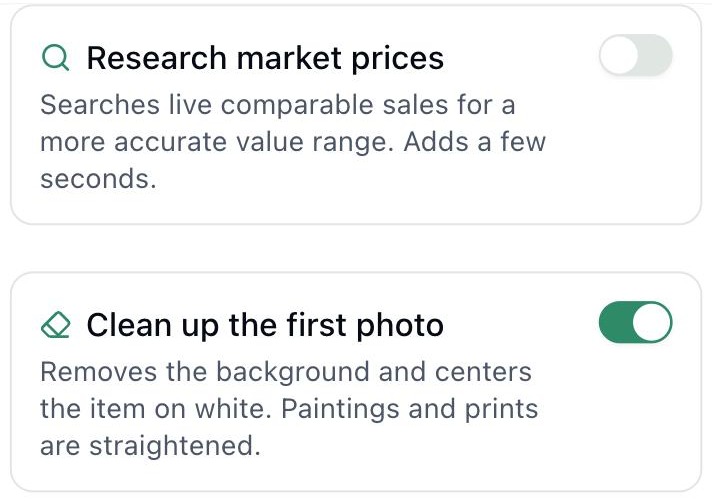
When you create items, there is a new switch next to the market research toggle: Clean up the first photo. Turn it on and the first photo of every item you generate is cleaned as it comes in, so your lead photos are consistent across a whole sale without touching each one. Items in art categories go through the straightening tool instead. The original is kept and Undo is one tap, as always.
A few practical notes
- Photos are processed at full quality and the result comes back at the same size as your original, up to a 2,000 pixel square.
- Clean-ups count against a monthly allowance: 1,000 photos on Pro, 3,000 on Auction Pro, 5,000 on Business. Most houses will never get near it.
- Your photos are sent to the processing service only when you press the button or have the automatic switch on, and the service does not keep a copy of your photo.
- On Standard and Free, the buttons show in the editor with an upgrade prompt. Photo clean-up is part of Pro and above.
If you have a photo that the cut-out gets wrong, send it to us. The next round of work on this tool is an erase and restore brush for clutter sitting on top of an item, and the hard cases we see from you decide the order.
Ready to try it yourself?
Create your first AI-powered listing in 60 seconds. Free to start, no credit card required.
Start Free